Adding a Button element on a page
Last updated: August 11, 2025
Looking to add a button to one of your pages? The following guide will walk you through how to add a button element to any Motive page:
- Navigate to the 'Pages' section in the Motive CMS (Website -> Pages)
- Use the search bar to locate the page where you wish to add a button, then click on that page
- Once inside the page, click on the element beneath which you want to position the button
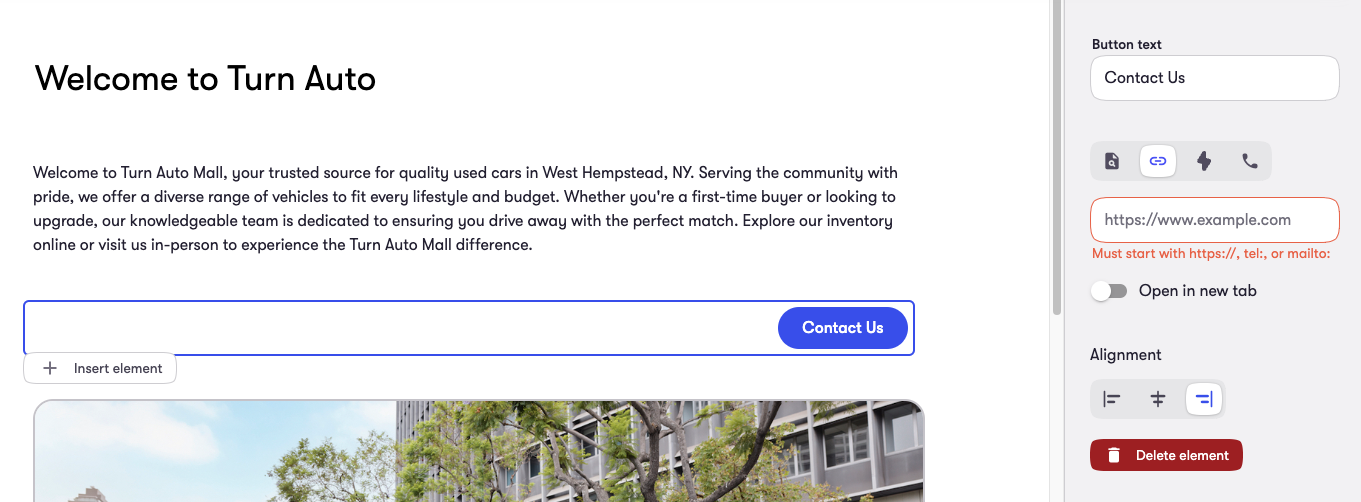
- After adding, in the right panel, modify the 'Button text' field to update the button's text.
- Beneath that, choose the destination for your button. In Motive, you can link a button to one of the following:
- An internal page
- An external link
- Open the trade or pre-qualify tool
- Trigger a call
- After making your selection, click the 'Publish' button on the top right to save your changes.
Note: Buttons can link to both internal Motive pages and external sites. Below is a demonstration of how a button can be linked to an internal page:
To link a button to an external page, select the button element. Then, in the right panel, click on the 'link' icon to hyperlink the button to the desired external page: