Adjusting OEM Incentives
Last updated: January 19, 2026
Need to change an OEM incentive from guaranteed to conditional (or vice versa), or remove it entirely? This guide walks you through how to update OEM incentives in Admin. Please note that any changes will apply to all units that include the associated incentive.
Navigate to the OEM Incentives page (Inventory → Incentives). From here, you can adjust Conditional and Guaranteed settings. At the bottom of the page, you can also manage any excluded incentives.
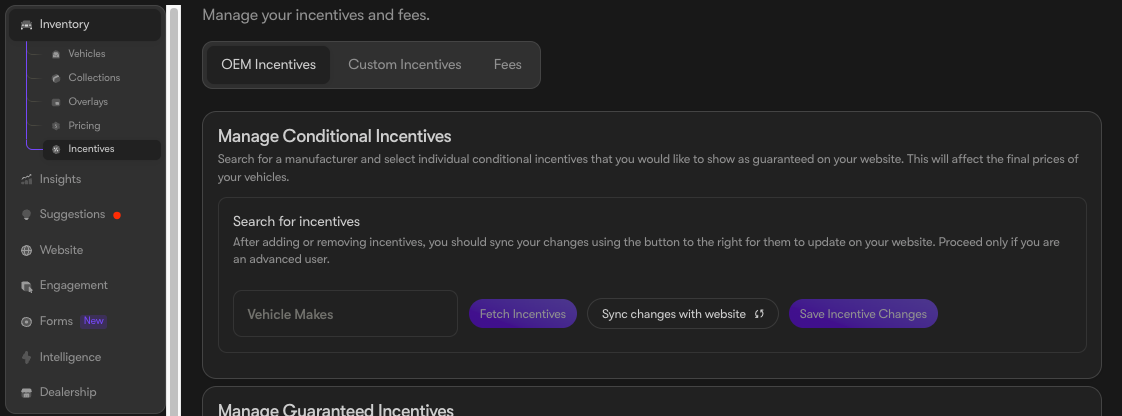
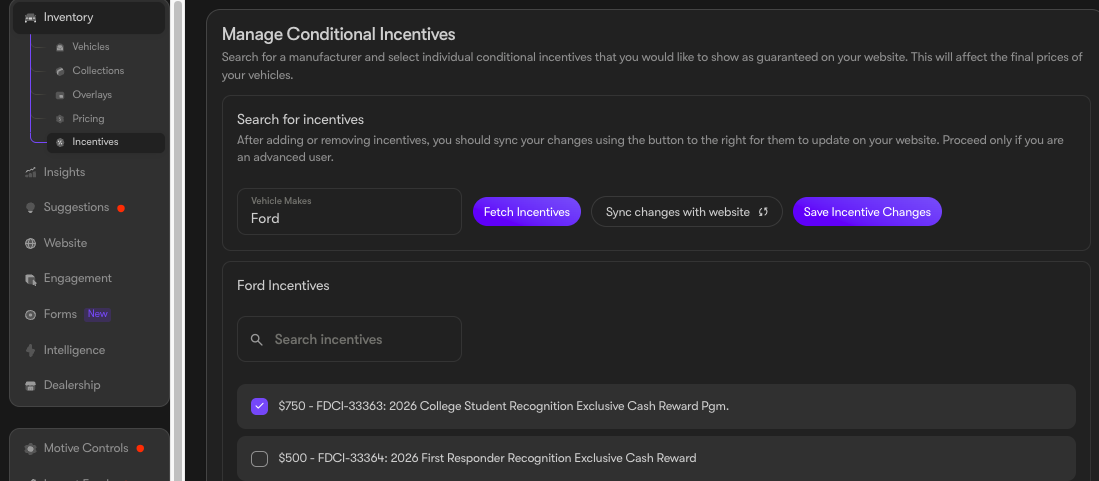
To change whether an incentive appears as Conditional or Guaranteed, navigate to the section that reflects its default state. Search by the OEM brand name, then click Fetch Incentives to load all applicable incentives.
Select the incentives you want to update, click Save Incentive Changes, and then click Sync Changes with Website.
Any incentive selected in the Conditional section will be changed to Guaranteed, and any incentive selected in the Guaranteed section will be changed to Conditional. Updates will be reflected on the website within one hour.
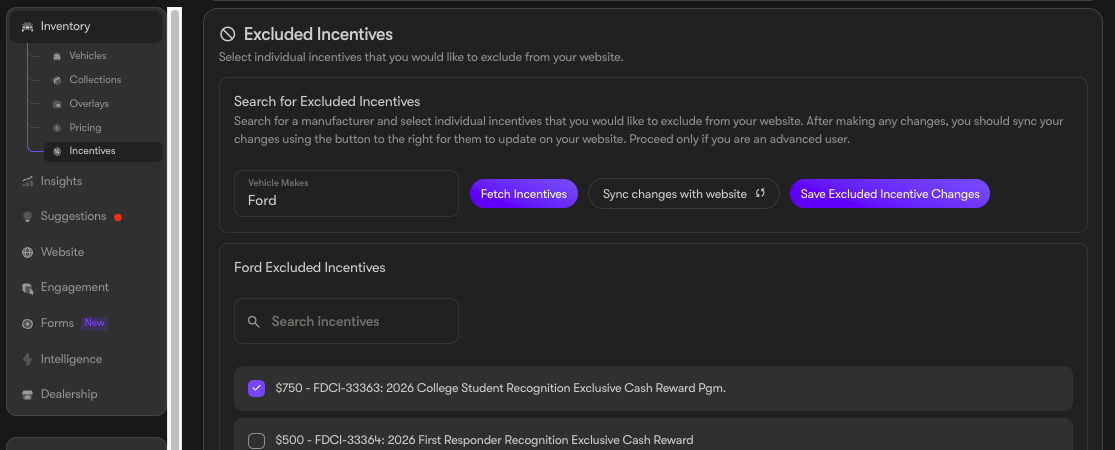
To fully remove an incentive, scroll to the Excluded Incentives section and search for the OEM name. Select any incentives you do not want displayed online, then click Save and Sync. The incentive will be removed from the website within an hour.
Have questions? Contact support@motivehq.com-our team is happy to help!